Firewall check: How long until you know your Firewall has been down?
There are numerous cases where someone disables Windows Firewall temporarily to troubleshoot a connectivity issue. The problem gets resolved. The firewall stays disabled—for months.
Nobody notices until the security team investigates why sensitive data is suddenly appearing on dark web marketplaces.
The uncomfortable truth? A disabled Windows Firewall is one of the most common and most preventable security gaps in enterprise environments, yet most organizations have zero automated monitoring for this critical protection layer. Please do not depend on the routine Firewall checks that run monthly or quarterly; the gap between these routine checks is more than enough to welcome catastrophes.
Windows Firewall isn't glamorous. It doesn't make headlines like zero-day vulnerabilities or ransomware attacks, but it's your first line of defence against:
- Lateral movement by attackers already inside your network
- Unauthorized inbound connections to sensitive services
- Malware command-and-control communications
- Data exfiltration attempts
When Windows Firewall is disabled even on a single endpoint, it is an unguarded entry point that sophisticated attackers actively scan for.
The Problem: One Size Doesn't Fit All
Here's where many security teams get it wrong: Windows Firewall operates across three distinct network profiles, each with different risk implications.
Domain Profile
Applies when the device is connected to your corporate Active Directory domain.
Risk Context: Corporate network with existing perimeter security. However, if attackers breach the perimeter, a disabled domain firewall enables unrestricted lateral movement.
Monitoring Priority: High, because this is where your sensitive resources live.
Private Profile
Applies to trusted networks like home offices or known private networks.
Risk Context: Remote workers connecting from home networks. A disabled private firewall exposes corporate devices to whatever else lives on that home network like compromised IoT devices, family computers with malware, or nosy neighbors on shared WiFi.
Monitoring Priority: Critical in remote/hybrid work environments.
Public Profile
Applies to untrusted networks like coffee shops, airports, or hotel WiFi.
Risk Context: Maximum exposure. Public networks are hunting grounds for attackers. A disabled public firewall is essentially broadcasting come and get me to every malicious actor on the network.
Monitoring Priority: Absolute highest. This should trigger immediate alerts.
Monitoring "None" Profile
When no specific profile applies or for catch-all monitoring across all states.
Risk Context: Ensures complete coverage regardless of network classification.
The Gap in Visibility
Ask yourself these questions:
- How many endpoints currently have Windows Firewall disabled?
- Would you be alerted within minutes if someone disabled it on a production server?
- Can you differentiate between a firewall disabled on a Domain profile versus Public profile?
- Do you have historical data showing firewall state changes over time?
If you answered no to any of these, you have a critical monitoring gap.
Windows doesn't natively alert you when firewall protection is disabled. It quietly accepts the configuration change and moves on. Group Policy can enforce settings, but GPO failures happen silently too.
You need independent, continuous monitoring that watches firewall state and screams loudly when protection disappears.
What Effective Firewall Monitoring Looks Like
Not all servers are equal. Your monitoring should reflect that reality. Starting with the check's name. Here are some naming convention examples:
- FW-Check-PROD-DatabaseServers-Domain
- FW-Check-PROD-WebServers-Public
- FW-Check-RemoteWorkstations-Private
Proper naming enables
- Instant identification of affected systems
- Proper alert routing to responsible teams
- Compliance reporting by system category
- Trend analysis across server groups
Point-in-time checks are not enough. You need:
- Continuous monitoring— not just periodic scans
- Immediate alerting on state changes
- Historical trending for compliance evidence
- Integration with incident management workflows
Hoping your Firewall is enabled is different from knowing it
Here's the uncomfortable question: If Windows Firewall was disabled on your most critical server right now, how long until you'd know?
If the answer is anything other than minutes, you have work to do.
Firewall monitoring isn't complex or expensive. It should be a part of your server monitoring strategy—at least with Site24x7. It's essential.
Your endpoints are either protected or exposed. Guessing which are protected isn't a security strategy.
Site24x7 Server Monitoring comes with built-in real time Firewall monitoring. Deploy Windows Firewall state monitoring across your entire infrastructure within minutes.
The instant a Firewall has been disabled, you will receive an alert in either email or a preferred ticket platform like JIRA. But isn't that an overkill for situations where you intentionally disable the Firewall for a test or troubleshoot? In that case, our poll strategy option fires an alert only when issues are persistent and not short-lived.
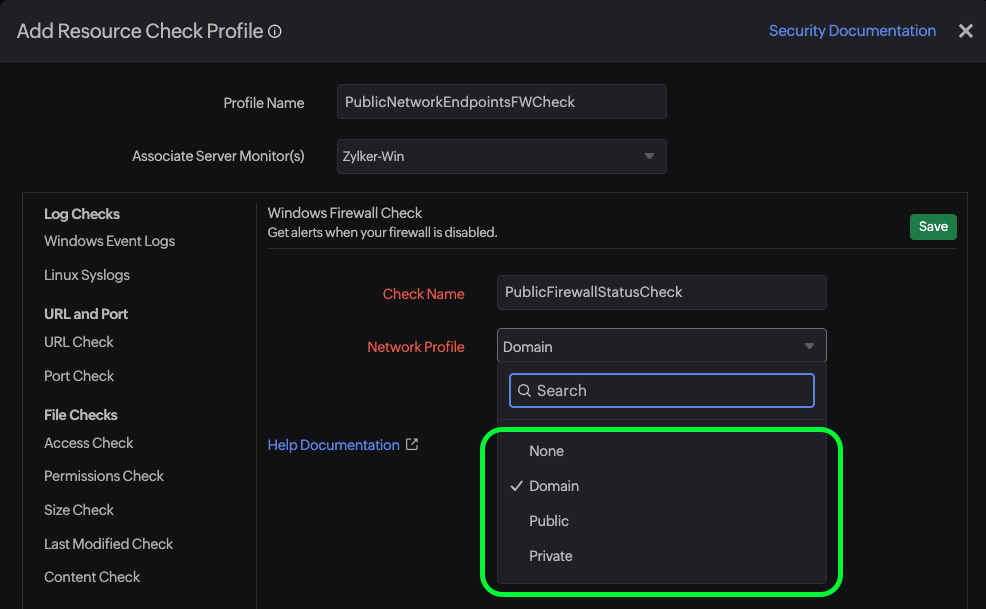
What you get is a Windows Firewall monitor, built-in with our comprehensive server monitoring suite that helps you:
- Custom check naming tailored to your environment
- Profile-specific monitoring: Domain, Public, Private, or All
- Instant alerts when firewall protection disappears
- Historical trending for compliance and forensics
- Integration ready with your existing incident workflows
One disabled firewall. One unmonitored endpoint. One breach that changes everything. Site24x7 ensures it's not your story.