
Downloading NCM configuration files
You can generate and download configuration reports for your devices to track and manage changes effectively.
Steps to download configuration files
- Navigate to Network > NCM > Download Configurations.
- Click the New Download button in the top-right corner of the page.
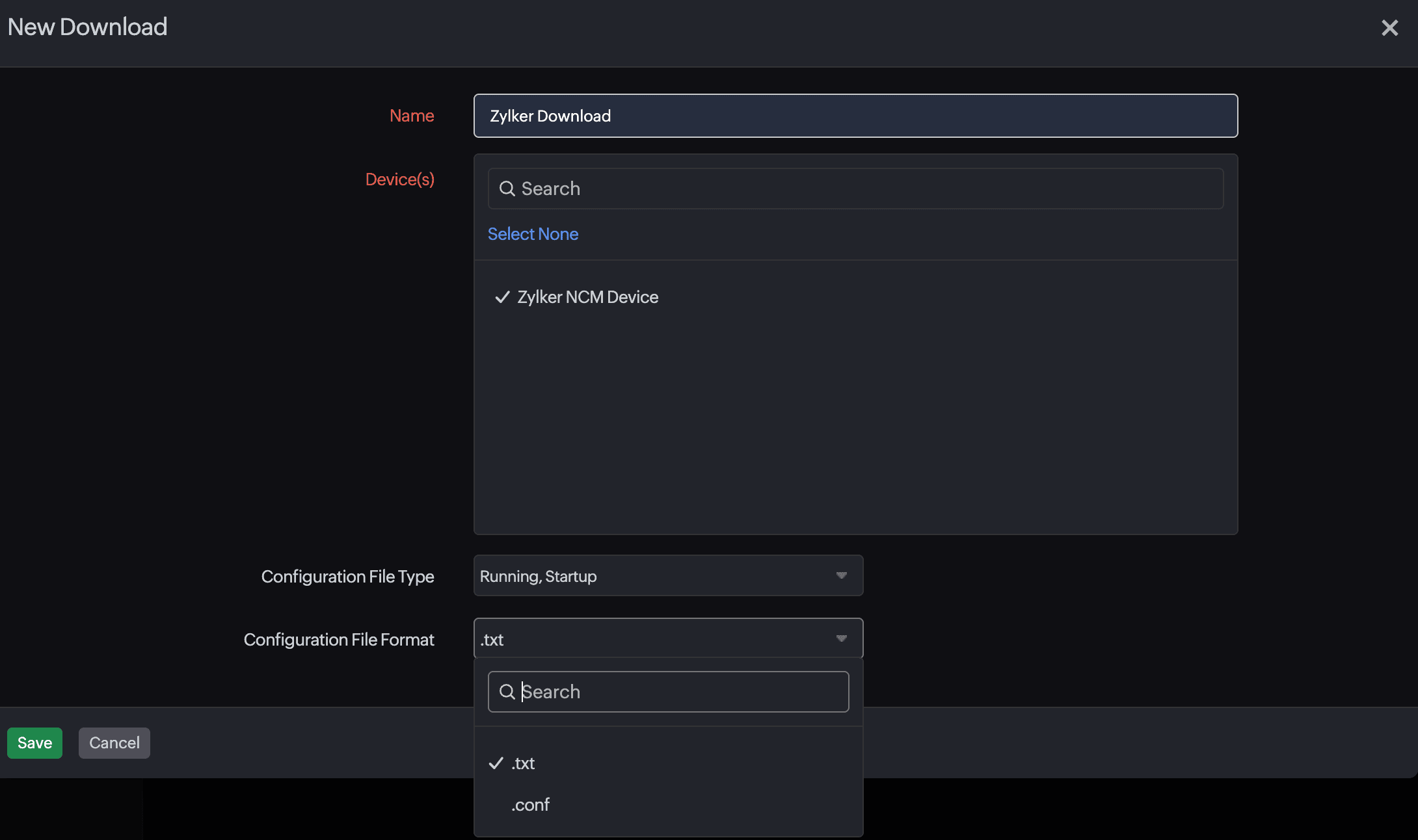
- Provide the following details:
- Name: Enter a unique name for the report.
- Device(s): Select one or more devices to include.
- Select Configuration Type: Select Running or Startup from the drop-down menu.
NoteIf no selection is made, both configurations will be downloaded.
- Configuration File Format: Select .txt to download the configuration report as a text file, or select .conf to download the report as a configuration file.
- Click Save.
A report record will be created with the following fields:
- Report Name: The user-given name of the download record
- Monitor Name: The name of the NCM monitor
- Status: The status of the download attempt
- Configuration Type(s): The type of the configuration file that was selected to be downloaded
- Device Count: The number of devices selected for downloading the configuration
- Time of Generation: The time at which the download record was generated
- Days until expiration: The remaining days until the download file cache expires, starting at seven days at the time of its generation and reducing automatically as time passes
- Generated By: The name of the user who generated the report
- In the last column of the report list, click the hamburger icon to:
- Download the ZIP file.
- Regenerate the download record, which will be sent to your email (subject to the size limits mentioned below). This also resets the Days until expiration field to 7 day(s).

Note
The generated configuration files will be compressed into a ZIP file with the following conditions:
- Maximum ZIP file size: 100MB
- If the ZIP file size exceeds 100MB, additional configuration files will not be added.
- The skipped devices will be marked as Failed Monitors, with their Status shown as Failure.
- Example: If you select 10 devices, and the ZIP file exceeds 100MB after nine, the 10th will fail.
- Retention period: Reports are cached and available to download for seven days.
- Email limit: If the ZIP file exceeds 15MB, it cannot be sent as an attachment. In such cases, the ZIP file will only be available for downloading from the product UI.
Schedule Download
You can schedule NCM configuration reports to be generated and shared automatically:
- Click the Schedule Download option in the top-right corner.
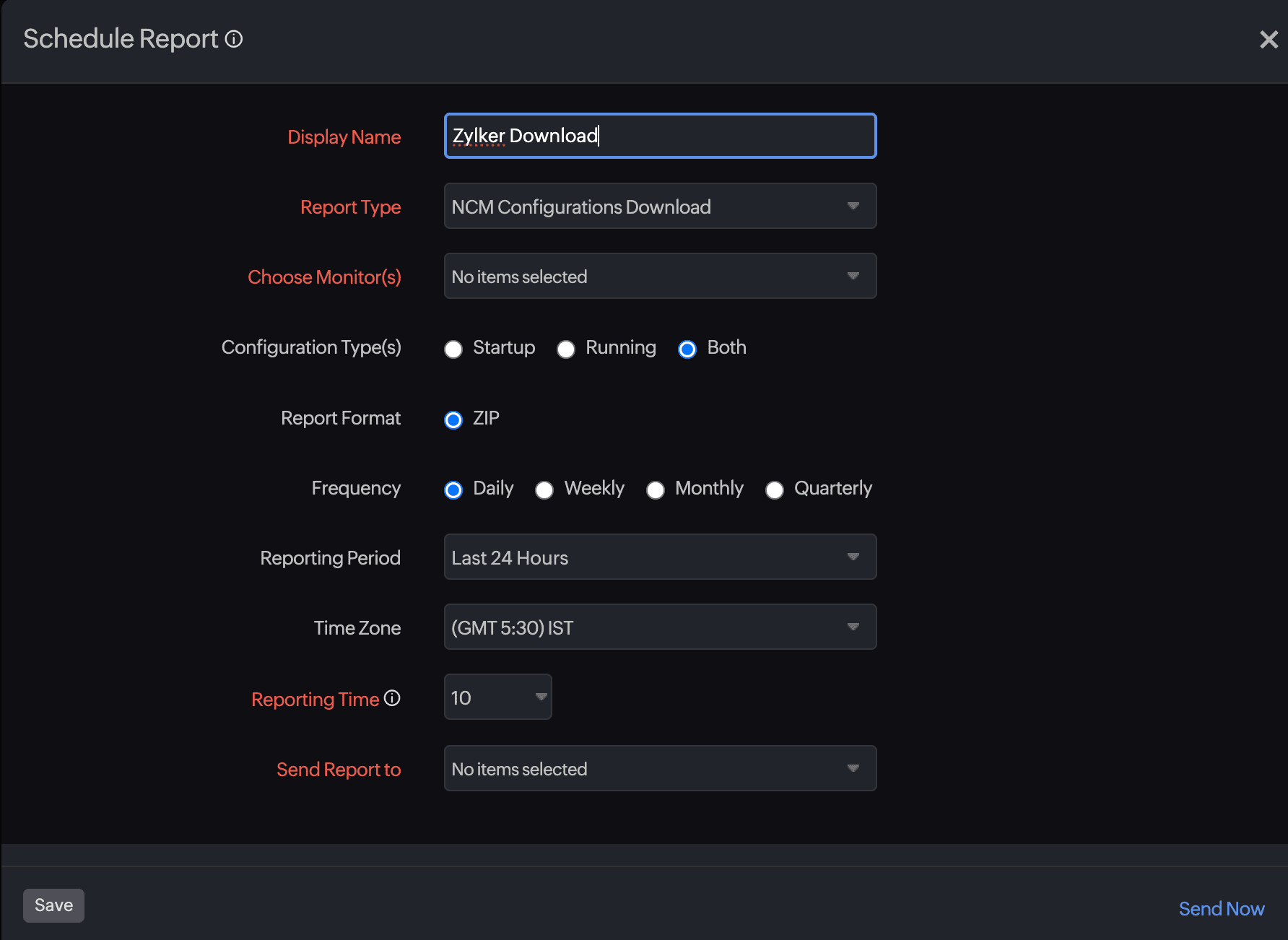
- Provide the following details:
- Display Name: Provide a name for the scheduled report.
- Report Type: Select NCM Configurations Download.
- Choose Monitor(s): Select the devices you want to include.
- Configuration Type(s): Select Startup, Running, or Both.
- Report Format: Select ZIP.
- Frequency: Select how often the report should run: Daily, Weekly, Monthly, or Quarterly.
- Reporting Period: Select the time period for the report (for example, Last 24 Hours).
- Time Zone: Select your preferred time zone (e.g., (GMT+5:30) IST).
- Reporting Time: Specify the time when the report should run.
- Send Report to: Select the recipients for the report. This is based on predefined User Alert Groups.
- Click Save or Send Now.
Once saved, the report will be automatically generated and sent according to your chosen schedule (with email delivery depending on the size constraints).
Related article
-
On this page
- Steps to download configuration files
- Schedule Download