Notification Template
A Notification Template lets you define and standardize how alert data is formatted and delivered to third-party tools. It enables you to set the structure, fields, and format of the notification payload to meet the requirements of external systems. By customizing templates, you ensure that alerts are structured, consistent, and aligned with the needs of the destination system.
Notification Templates are used within Notification Profiles. Applying a template controls how messages and alerts appear in the connected third-party tool, ensuring consistency and clarity.
Supported third-party tools
Use case
When an alert is triggered in your monitoring system, it can be forwarded to an external incident management tool, such as ServiceDesk Plus Cloud or ServiceNow. For example, if a critical server goes down, a ticket can be created automatically in your ITSM tool.
With a Notification Template, you can structure alert data to match the tool’s expected format by mapping fields like Alert Name, Severity, and Timestamp to the corresponding ticket fields. You can also include additional details, such as Priority, Assignment Group, or Custom Notes, to the incident template.
This ensures that the generated ticket is complete, consistent, and immediately actionable, eliminating the need for manual updates.
Add a Notification Template
- Log in to your Site24x7 account.
- Navigate to Admin > Configuration Profiles > Notification Template.
- Click Add Notification Template in the Notification Template window or click on the + button.
- Enter the following details to create a new Notification Template:
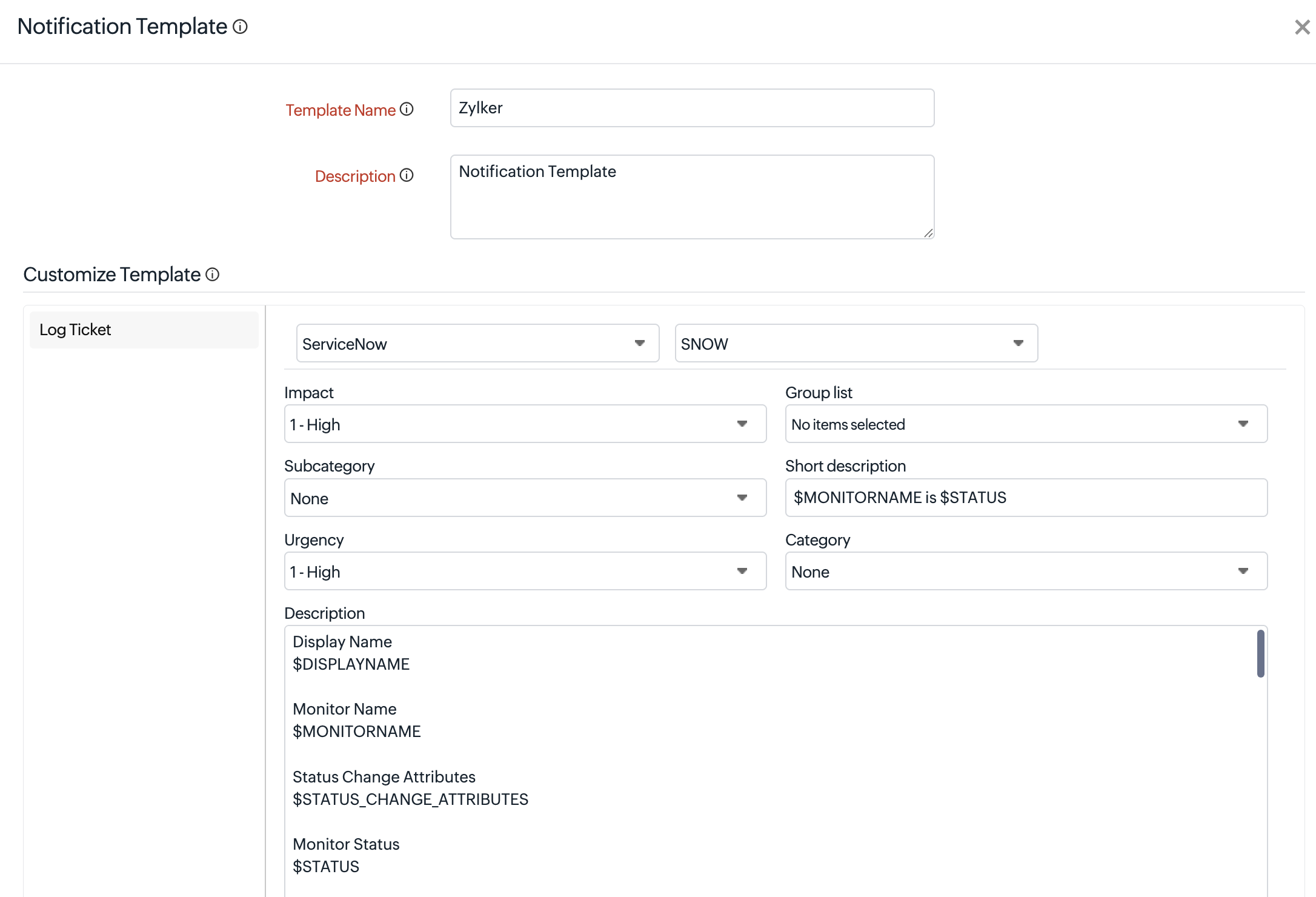
- Template Name: Enter a name for the Notification Template.
- Description: Enter a description that explains your Notification Template.
- Customize Template: Specify the following information:
- In the Log Ticket section, choose a third-party tool and relevant template from the associated drop-down menus next to Log a Ticket.
NoteIf there are no integrations for the selected third-party tool, an error message will appear indicating that no integrations are configured for the tool.
ITSM tool integration
For ITSM integrations, default values are automatically populated based on the template selected from the drop-down menu. The template defines the set of fields that will be included in the alert payload. You can configure the values for each field to match your ITSM system’s requirements.
Field dependencies in ITSM toolsIn most ITSM tools, certain fields are interdependent and dynamically update based on the user's selections. Understanding these dependencies is essential to ensure that alert data is accurate and consistent.For example, Category and Subcategory are commonly linked fields. Selecting a category filters the available subcategory options to only relevant values, ensuring proper classification.Similarly, fields such as Site, Group, and Technician are often interconnected. The available groups may depend on the selected site, and the list of technicians is filtered based on the chosen group. This hierarchy helps to ensure correct assignment and routing within the ITSM system.
These fields are part of the configuration form. To maintain data accuracy and avoid inconsistencies in generated alerts,ensure that these selections are made carefully with consideration to their dependencies.
- In the Log Ticket section, choose a third-party tool and relevant template from the associated drop-down menus next to Log a Ticket.
- Click Save to save your template.
Map the Notification Template to the Notification Profile
Once the Notification Template is created, it must be mapped to the Notification Profile. Follow the steps to map the template.
- Log in to your Site24x7 account.
- Click Admin > Configuration Profiles > Notification Profile.
- Open a Notification Profile from the profile listings page.
- Choose the Notification Template from the drop-down menu.
- Click Save to save the notification profile.
Learn more about adding a Notification Profile.
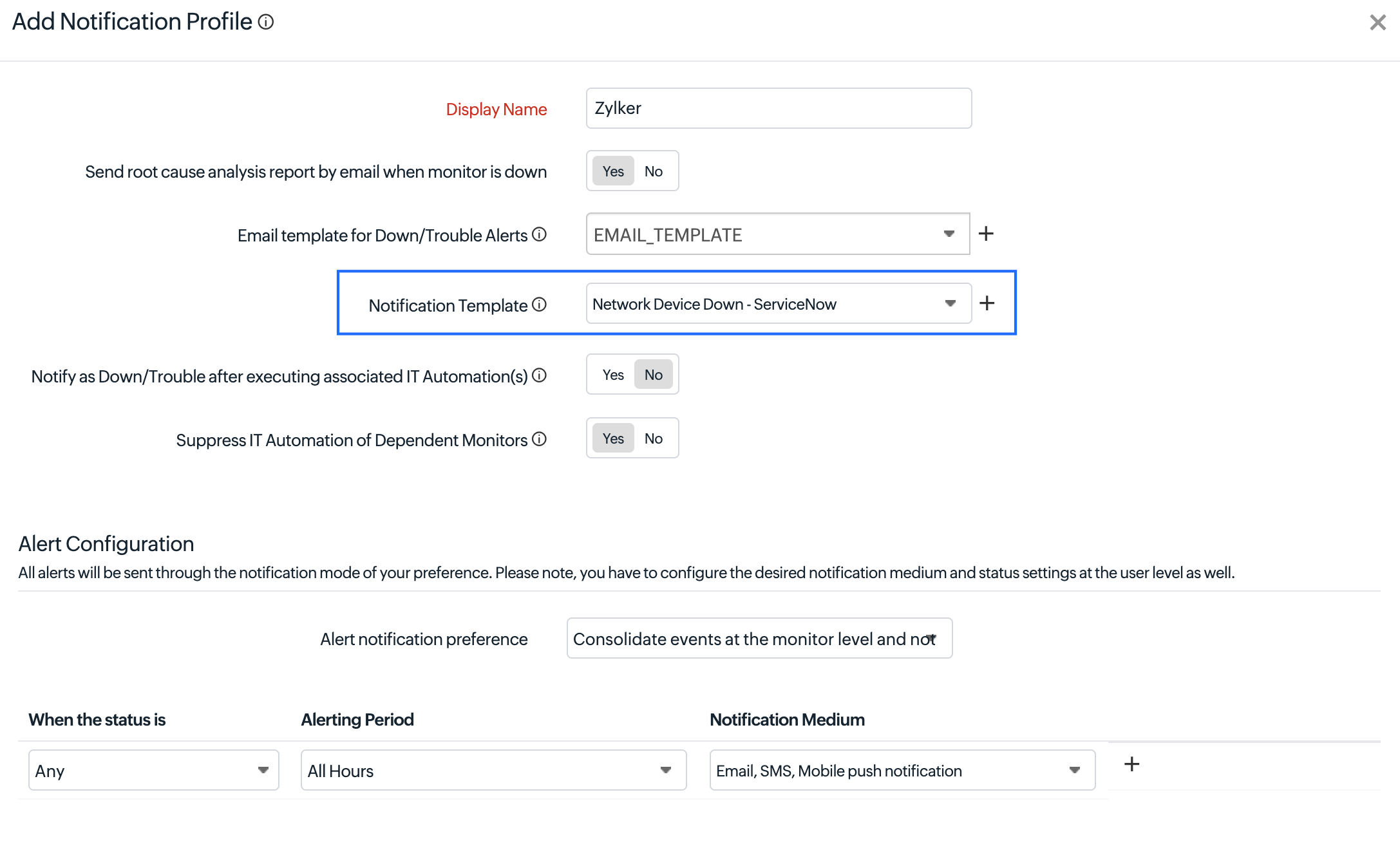
Whenever a Notification Profile is mapped to the monitor, alerts will be displayed according to the selected Notification Template.
View the Notification Template
Follow the steps below to view all listed Notification Templates.
- Log in to your Site24x7 account.
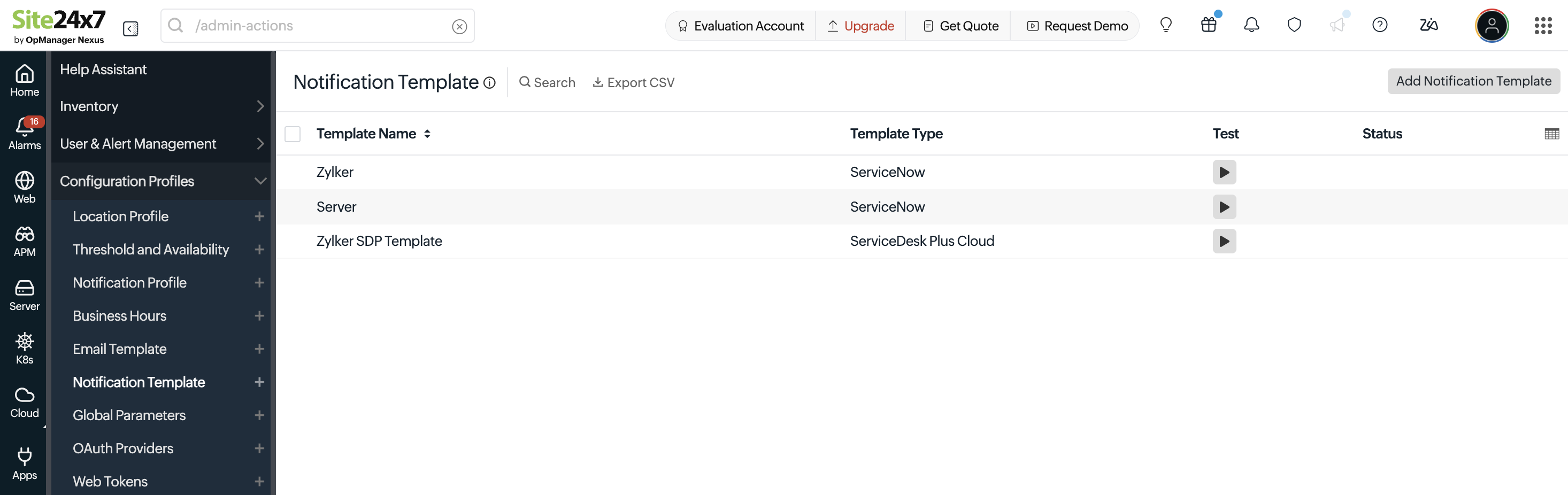
- Navigate to Admin > Configuration Profiles > Notification Template. You will see the list of Notification Templates.
- The list will display the following: Template Name, Template Type, Test, and Status.
Test the Notification Template
To test a Notification Template, select the required template and click the Trigger Test Alert  button to trigger a test alert.
If the test is successful, a confirmation message is displayed and the Status column shows Success. If the test fails, the Status column shows Failed along with a View Details link. Clicking View Details opens a pop-up displaying the reason for the failure along with the corresponding response code.

Update the Notification Template
Follow the steps below to update the configuration and alert formatting of an existing Notification Template.
- Log in to your Site24x7 account.
- Navigate to Admin > Configuration Profiles > Notification Template. Select the template you wish to edit.
- Update the necessary parameters of the selected Notification Template in the Edit Notification Template window.
- Click Save to apply your changes.
Delete a Notification Template
Follow the steps below to remove a Notification Template that is no longer required.
- Log in to your Site24x7 account.
- Navigate to Admin > Configuration Profiles > Notification Template.
- Select the template you wish to delete in the Edit Notification Template window, then click Delete in the bottom-right corner of the window.
When a user attempts to delete a Notification Template that is associated with a Notification Profile, the system displays an error and prevents the deletion.
However, if the integration associated with that template is deleted, the system will automatically remove the Notification Template and its corresponding mappings from the associated profile.
Related articles
- Learn more about Notification Profile.